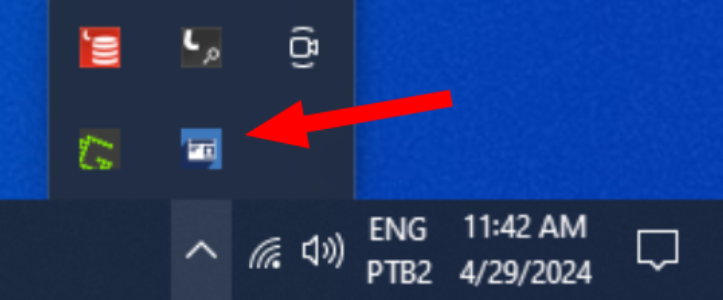
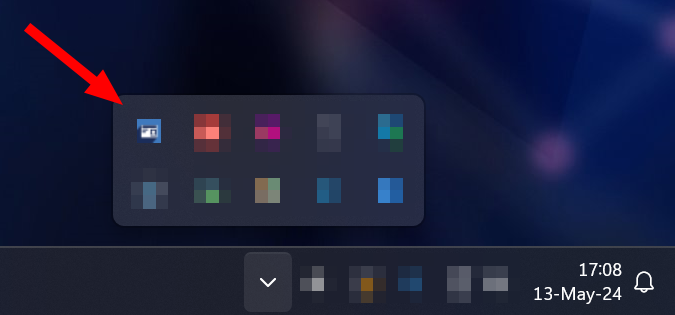
 If BCC Services is not running, open the Start menu by clicking the Windows icon on the left side of the taskbar (or pressing the Windows key on the keyboard). Then, look for the GBS BCC folder in the list of programs (or type "bcc" to search). Click the `BCC` icon to open BCC Services.
 or 
{% endhint %}
* **Face**
To capture the face photo, hover over the action button `Capture` and click Live face. A capture window will open.
If the camera does not start automatically, click Start camera.

Instruct the person to position themselves correctly in front of the camera and click Capture.
{% hint style="info" %}
In some environments, the photo capture can be done automatically after the system detects that the person is positioned correctly in front of the camera.
{% endhint %}

Automatically, the system will make some adjustments to the captured image and display it on the right side of the screen. If desired, manual brightness and contrast adjustments can be made. To do this, slide the selector to the right or left. When you are satisfied with the image, click OK.

* **Fingerprints**
To capture fingerprints, hover over the action button `Capture` and click Live fingerprints. A capture window will open.

Click Fingerprints, in the lower-right corner of the screen, and capture the sequence control fingerprints, according to the instructions displayed on the screen.
{% hint style="info" %}
This step may not be necessary in your environment; in that case, ignore it and proceed to the next step.
{% endhint %}

Next, click Fingerprints again to start capturing the main fingerprints. The finger to be captured will be highlighted in red. Instruct the person to place the finger correctly on the biometric reader and wait for automatic capture.

After a successful capture, the collected finger will be highlighted in green and the screen will automatically advance to the next finger to be captured.

In special cases, it may be necessary to indicate some anomaly in the capture of a finger. To do this, with the selected finger (highlighted in red), click the drop-down menu below the capture area and select a reason. The options are: Damaged, Bandaged, Ignored, Amputated, or Low quality.

After choosing a reason, the selected finger will be highlighted in orange. Click Accept, in the lower-right corner of the screen, to confirm the anomaly.

After accepting the addition of an anomaly, the finger with the anomaly will be highlighted with a specific color, depending on the reason:
* **Damaged** or **Bandaged**: gray
* **Ignored** or **Low quality**: yellow
* **Amputated**: black

The anomalies will also be displayed in the list of collected fingerprints with the message "anomaly" and the chosen reason. Biometrics without anomaly will be accompanied by an indication of the collection quality.

After finishing the fingerprint capture, click Save in the lower-right corner of the screen.

* **Signature**
To capture the signature, hover over the action button `Capture` and click Live signature. A capture window will open.

Perform the collection using the signature pad.
At the end of the captures, the process status will be **Captured** and the biometrics will be available for viewing.
{% endstep %}
{% endstepper %}
#### Edit Biographical Data
If a process has not yet been sent, it is possible to edit the applicant's biographical data. To do this, click the Edit biographical data action button, located in the upper-right corner of the screen. An editing window will open:

Make the necessary changes and click Edit biographical data. If you want to discard the changes, click Cancel.
#### Additional Documents
Before sending a process, `Additional Documents`must be attached, such as a copy of the applicant's birth or marriage certificate.
To do this, click the **Add**button, located at the lower-right part of the additional documents section:

Select the desired file and click Open to attach it to the process. The document will be displayed in the list of additional documents. Then, in the drop-down menu, select a category for the document and click Save changes.

The document will be added to the process. To **view**, **download** or **delete** a document, click the corresponding icons, located at the end of the document row in the additional documents list.

#### Send Civil Process
The next step in the identity card issuance process is to send the process for processing. To do this, on the [Civil Process Details](#detalhes-do-processo-civil)screen, click the Send button, located in the upper-right corner of the screen.

A confirmation window will appear. The send button will remain disabled until an option is selected.

Select whether you want to send the profile for investigation (biographical exception in ETR). If so, use the drop-down menu to add a reason.
 
Then, if necessary, mark that the profile has low-quality biometrics.
Finally, click Send.

The profile will be sent for processing and its status will be updated.

#### Biographical Review
In some cases, it may be necessary to perform a Biographical Review to review the biographical data sent in the process. This happens due to environment settings or discrepancies between the data sent in the process and the biographical data already present in the database. In these cases, the process will have the status **Ready for review**.
To perform the Biographical Review, click the footer button Biographical review, located in the lower-right corner of the page:

The `Biographical review` screen will open. There, it is possible to view the process biographical data and the data retrieved from the database, as well as the birth certificate (or marriage certificate) sent with the process:

**The process biographical data must match the data present in the birth certificate** (or marriage certificate) of the applicant citizen, even if this data does not match the data retrieved from the database.
When performing the review, if necessary, it is possible to edit the process biographical data. To do this, click Edit biographical data. Make the necessary changes and click Save changes. If you want to discard the changes, click Cancel.

Then, click Accept to confirm the Biographical Review and accept the process. On the confirmation screen, click Accept again.

If you do not want to proceed with this process, it is possible to reject it. To do this, click Reject. On the confirmation screen, click Reject again.
{% hint style="danger" %}
When rejecting a process, its status will progress to **Rejected** and the process will be completed. This is a final status. To restart, a new service with the applicant and a new process will be required.
{% endhint %}

#### Payment
In second-copy processes or [Express Issuance](#emissao-expressa)it is necessary for payment to be made before delivering the printed document to the applicant.
Payment options are available among the action buttons, in the drop-down menu `Payment`.

There are three available options:
* [Generate Payment Slip](#gerar-boleto)
* [Exempt Payment](#isentar-pagamento)
* [Confirm Payment](#confirmar-pagamento)
{% stepper %}
{% step %}
#### Generate Payment Slip
To generate a bank payment slip, hover over `Payment` and click Generate payment slip.
A new tab will open with the payment slip PDF and options to save or print the slip.
{% endstep %}
{% step %}
#### Exempt Payment
To exempt a process from payment, hover over `Payment` and click Exempt payment. Then, select the exemption reason and click Send:

{% endstep %}
{% step %}
#### Confirm Payment
If the payment was made by bank payment slip, it must be confirmed so that the process can proceed. To do this, hover over `Payment` and click Confirm payment. Then, enter the slip number and click Confirm payment. A search will be performed and, if the slip is marked as paid, the payment will be confirmed.

{% endstep %}
{% endstepper %}
#### Deliver Printed Document
The final stage of the identity card issuance process consists of delivering the printed document to the applicant. For this, the process must have the status **Available for Delivery**.

There are two options:
* [Hand delivery](#entrega-em-maos)
* [Delivery by power of attorney](#entrega-por-procuracao)
{% hint style="info" %}
In second-copy processes or [Express Issuance](#emissao-expressa), the payment must already have been confirmed so that the printed document can be delivered to the applicant.
The option `Deliver Document` will remain unavailable until the payment is confirmed.
If BCC Services is not running, open the Start menu by clicking the Windows icon on the left side of the taskbar (or pressing the Windows key on the keyboard). Then, look for the GBS BCC folder in the list of programs (or type "bcc" to search). Click the `BCC` icon to open BCC Services.
 or 
{% endhint %}
* **Face**
To capture the face photo, hover over the action button `Capture` and click Live face. A capture window will open.
If the camera does not start automatically, click Start camera.

Instruct the person to position themselves correctly in front of the camera and click Capture.
{% hint style="info" %}
In some environments, the photo capture can be done automatically after the system detects that the person is positioned correctly in front of the camera.
{% endhint %}

Automatically, the system will make some adjustments to the captured image and display it on the right side of the screen. If desired, manual brightness and contrast adjustments can be made. To do this, slide the selector to the right or left. When you are satisfied with the image, click OK.

* **Fingerprints**
To capture fingerprints, hover over the action button `Capture` and click Live fingerprints. A capture window will open.

Click Fingerprints, in the lower-right corner of the screen, and capture the sequence control fingerprints, according to the instructions displayed on the screen.
{% hint style="info" %}
This step may not be necessary in your environment; in that case, ignore it and proceed to the next step.
{% endhint %}

Next, click Fingerprints again to start capturing the main fingerprints. The finger to be captured will be highlighted in red. Instruct the person to place the finger correctly on the biometric reader and wait for automatic capture.

After a successful capture, the collected finger will be highlighted in green and the screen will automatically advance to the next finger to be captured.

In special cases, it may be necessary to indicate some anomaly in the capture of a finger. To do this, with the selected finger (highlighted in red), click the drop-down menu below the capture area and select a reason. The options are: Damaged, Bandaged, Ignored, Amputated, or Low quality.

After choosing a reason, the selected finger will be highlighted in orange. Click Accept, in the lower-right corner of the screen, to confirm the anomaly.

After accepting the addition of an anomaly, the finger with the anomaly will be highlighted with a specific color, depending on the reason:
* **Damaged** or **Bandaged**: gray
* **Ignored** or **Low quality**: yellow
* **Amputated**: black

The anomalies will also be displayed in the list of collected fingerprints with the message "anomaly" and the chosen reason. Biometrics without anomaly will be accompanied by an indication of the collection quality.

After finishing the fingerprint capture, click Save in the lower-right corner of the screen.

* **Signature**
To capture the signature, hover over the action button `Capture` and click Live signature. A capture window will open.

Perform the collection using the signature pad.
At the end of the captures, the process status will be **Captured** and the biometrics will be available for viewing.
{% endstep %}
{% endstepper %}
#### Edit Biographical Data
If a process has not yet been sent, it is possible to edit the applicant's biographical data. To do this, click the Edit biographical data action button, located in the upper-right corner of the screen. An editing window will open:

Make the necessary changes and click Edit biographical data. If you want to discard the changes, click Cancel.
#### Additional Documents
Before sending a process, `Additional Documents`must be attached, such as a copy of the applicant's birth or marriage certificate.
To do this, click the **Add**button, located at the lower-right part of the additional documents section:

Select the desired file and click Open to attach it to the process. The document will be displayed in the list of additional documents. Then, in the drop-down menu, select a category for the document and click Save changes.

The document will be added to the process. To **view**, **download** or **delete** a document, click the corresponding icons, located at the end of the document row in the additional documents list.

#### Send Civil Process
The next step in the identity card issuance process is to send the process for processing. To do this, on the [Civil Process Details](#detalhes-do-processo-civil)screen, click the Send button, located in the upper-right corner of the screen.

A confirmation window will appear. The send button will remain disabled until an option is selected.

Select whether you want to send the profile for investigation (biographical exception in ETR). If so, use the drop-down menu to add a reason.
 
Then, if necessary, mark that the profile has low-quality biometrics.
Finally, click Send.

The profile will be sent for processing and its status will be updated.

#### Biographical Review
In some cases, it may be necessary to perform a Biographical Review to review the biographical data sent in the process. This happens due to environment settings or discrepancies between the data sent in the process and the biographical data already present in the database. In these cases, the process will have the status **Ready for review**.
To perform the Biographical Review, click the footer button Biographical review, located in the lower-right corner of the page:

The `Biographical review` screen will open. There, it is possible to view the process biographical data and the data retrieved from the database, as well as the birth certificate (or marriage certificate) sent with the process:

**The process biographical data must match the data present in the birth certificate** (or marriage certificate) of the applicant citizen, even if this data does not match the data retrieved from the database.
When performing the review, if necessary, it is possible to edit the process biographical data. To do this, click Edit biographical data. Make the necessary changes and click Save changes. If you want to discard the changes, click Cancel.

Then, click Accept to confirm the Biographical Review and accept the process. On the confirmation screen, click Accept again.

If you do not want to proceed with this process, it is possible to reject it. To do this, click Reject. On the confirmation screen, click Reject again.
{% hint style="danger" %}
When rejecting a process, its status will progress to **Rejected** and the process will be completed. This is a final status. To restart, a new service with the applicant and a new process will be required.
{% endhint %}

#### Payment
In second-copy processes or [Express Issuance](#emissao-expressa)it is necessary for payment to be made before delivering the printed document to the applicant.
Payment options are available among the action buttons, in the drop-down menu `Payment`.

There are three available options:
* [Generate Payment Slip](#gerar-boleto)
* [Exempt Payment](#isentar-pagamento)
* [Confirm Payment](#confirmar-pagamento)
{% stepper %}
{% step %}
#### Generate Payment Slip
To generate a bank payment slip, hover over `Payment` and click Generate payment slip.
A new tab will open with the payment slip PDF and options to save or print the slip.
{% endstep %}
{% step %}
#### Exempt Payment
To exempt a process from payment, hover over `Payment` and click Exempt payment. Then, select the exemption reason and click Send:

{% endstep %}
{% step %}
#### Confirm Payment
If the payment was made by bank payment slip, it must be confirmed so that the process can proceed. To do this, hover over `Payment` and click Confirm payment. Then, enter the slip number and click Confirm payment. A search will be performed and, if the slip is marked as paid, the payment will be confirmed.

{% endstep %}
{% endstepper %}
#### Deliver Printed Document
The final stage of the identity card issuance process consists of delivering the printed document to the applicant. For this, the process must have the status **Available for Delivery**.

There are two options:
* [Hand delivery](#entrega-em-maos)
* [Delivery by power of attorney](#entrega-por-procuracao)
{% hint style="info" %}
In second-copy processes or [Express Issuance](#emissao-expressa), the payment must already have been confirmed so that the printed document can be delivered to the applicant.
The option `Deliver Document` will remain unavailable until the payment is confirmed.
 For more information about payment, see the section [Payment](#pagamento).
{% endhint %}
{% stepper %}
{% step %}
#### Hand delivery
Hover over `Deliver Document`, located in the lower-right corner of the screen, and click Hand delivery.

On the document delivery screen, there are 3 delivery options:
1. **WITHOUT** biometric verification
> If the document is delivered without biometric verification, click Do not verify. Then confirm the delivery by clicking Confirm.
2. **WITH** biometric verification of **face**
> If the document is delivered with verification using face biometrics, click Verify with face. Then capture the face photo.
3. **WITH** biometric verification of **fingerprint**
> If the document is delivered with verification using fingerprint biometrics, click Verify with fingerprint. Then capture the fingerprints.
> {% endstep %}
{% step %}
#### Delivery by power of attorney
Hover over `Deliver Document`, located in the lower-right corner of the screen, and click Delivery by power of attorney.

Then, click Attach power of attorney. Attach the power of attorney file and confirm the delivery by clicking Confirm delivery.
{% endstep %}
{% endstepper %}
#### Civil Process History
At any time, it is possible to view the history of operations performed in the process by clicking the History action button. A table will be displayed with the history of actions, their description, date and time of execution, and the current status of that action (completed or pending).

The actions that can be viewed in the history are:
For more information about payment, see the section [Payment](#pagamento).
{% endhint %}
{% stepper %}
{% step %}
#### Hand delivery
Hover over `Deliver Document`, located in the lower-right corner of the screen, and click Hand delivery.

On the document delivery screen, there are 3 delivery options:
1. **WITHOUT** biometric verification
> If the document is delivered without biometric verification, click Do not verify. Then confirm the delivery by clicking Confirm.
2. **WITH** biometric verification of **face**
> If the document is delivered with verification using face biometrics, click Verify with face. Then capture the face photo.
3. **WITH** biometric verification of **fingerprint**
> If the document is delivered with verification using fingerprint biometrics, click Verify with fingerprint. Then capture the fingerprints.
> {% endstep %}
{% step %}
#### Delivery by power of attorney
Hover over `Deliver Document`, located in the lower-right corner of the screen, and click Delivery by power of attorney.

Then, click Attach power of attorney. Attach the power of attorney file and confirm the delivery by clicking Confirm delivery.
{% endstep %}
{% endstepper %}
#### Civil Process History
At any time, it is possible to view the history of operations performed in the process by clicking the History action button. A table will be displayed with the history of actions, their description, date and time of execution, and the current status of that action (completed or pending).

The actions that can be viewed in the history are:
| Action | Description |
|---|---|
| Awaiting capture | Awaiting biometric capture |
| Captured | Biometric data captured |
| Processing | Data being processed in ABIS |
| Awaiting quality handling | The process must be handled in MIR |
| Awaiting exception handling | The process must be handled in ETR |
| Processed | Data processed |
| Biographical review | Biographical check required |
| Processing at the Federal Revenue Service | Data being processed at the Federal Revenue Service |
| Processing at the Ministry of Justice | Data being processed at the Ministry of Justice |
| Printing | Printing document |
| Printed | Printed document |
| Closed | Process closed |
| Canceled | Process canceled |
| Federal Revenue Service error | Federal Revenue Service error |